> ## Documentation Index
> Fetch the complete documentation index at: https://docs.autoflow.tools/llms.txt
> Use this file to discover all available pages before exploring further.
# Editing Steps in AutoFlow Studio
> Learn how to edit steps in AutoFlow Studio
# Editing Steps in AutoFlow Studio
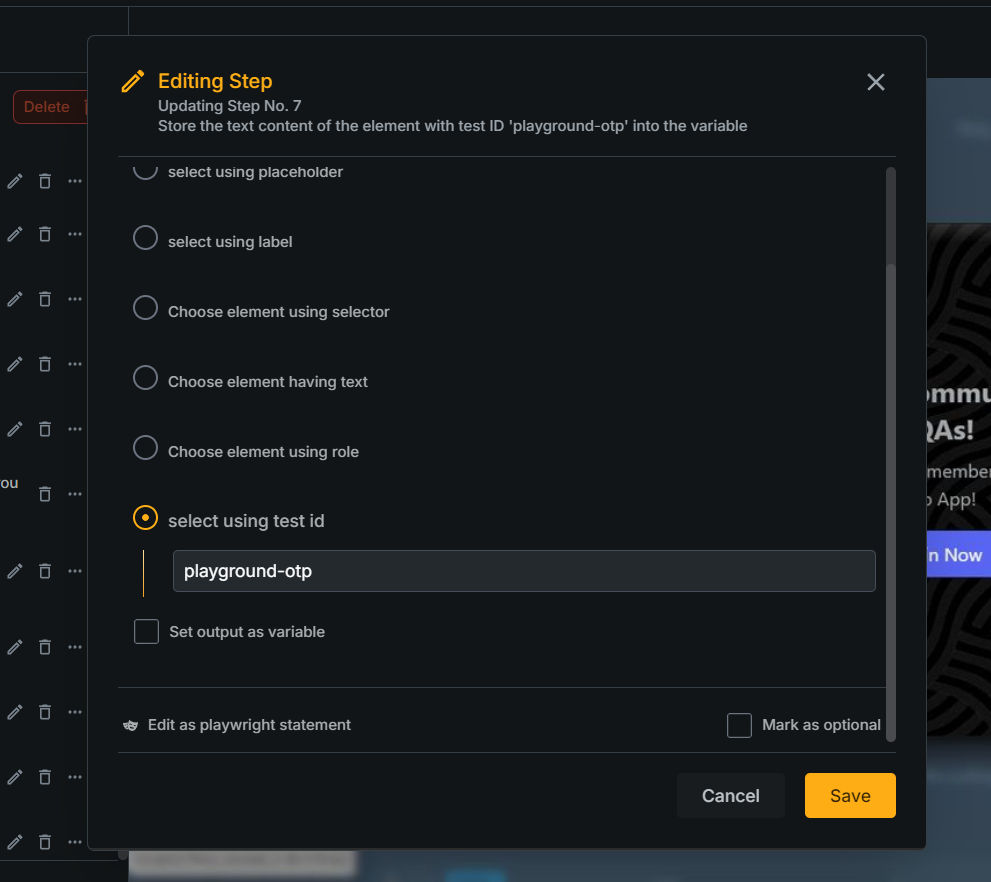
## You can edit steps by hovering over them and clicking on the pencil icon. This will open the edit modal.

## The Edit Step Modal has several sections depending on the type of step:
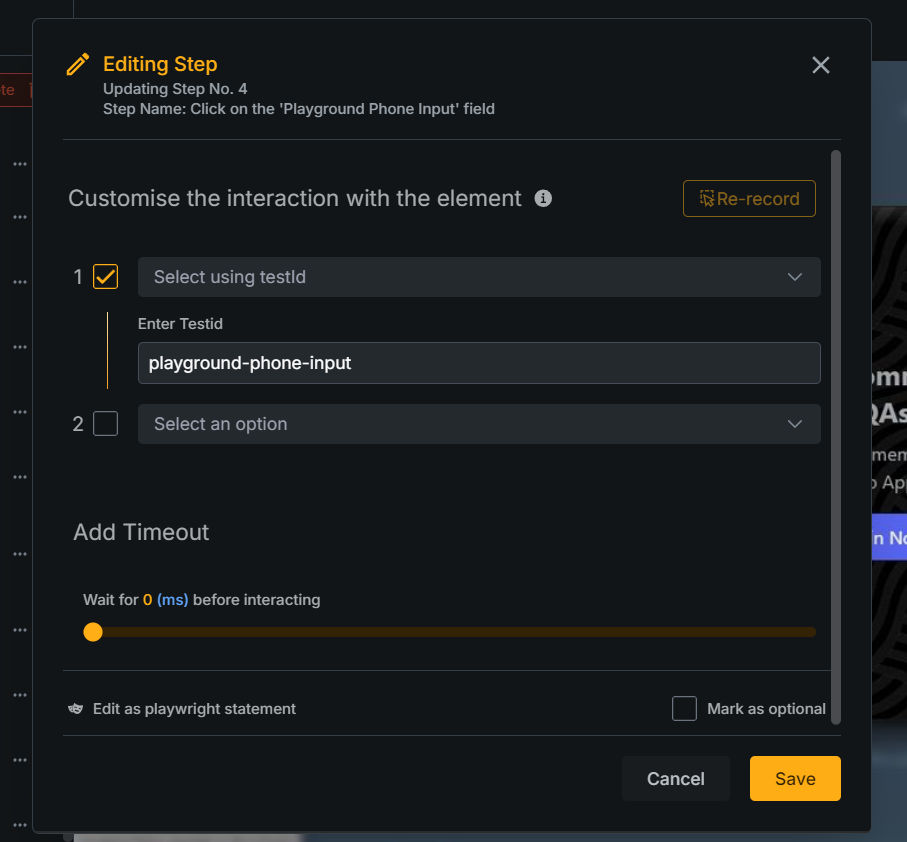
1. **Click Steps**
* Customise the interaction with the element: In this section, you can customise the interaction with the element by editing locators.
You can also chain multiple locators to make the interaction more specific.

* Add Timeout: Add timeout to the interaction.
2. **Input Steps**
* Modify Select: In this section, you can customise the interaction with the element by editing locators.
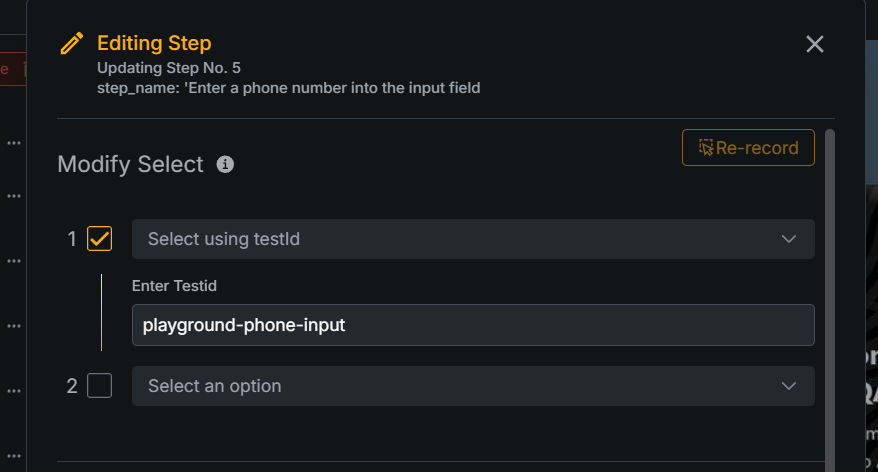
You can also chain multiple locators to make the interaction more specific.
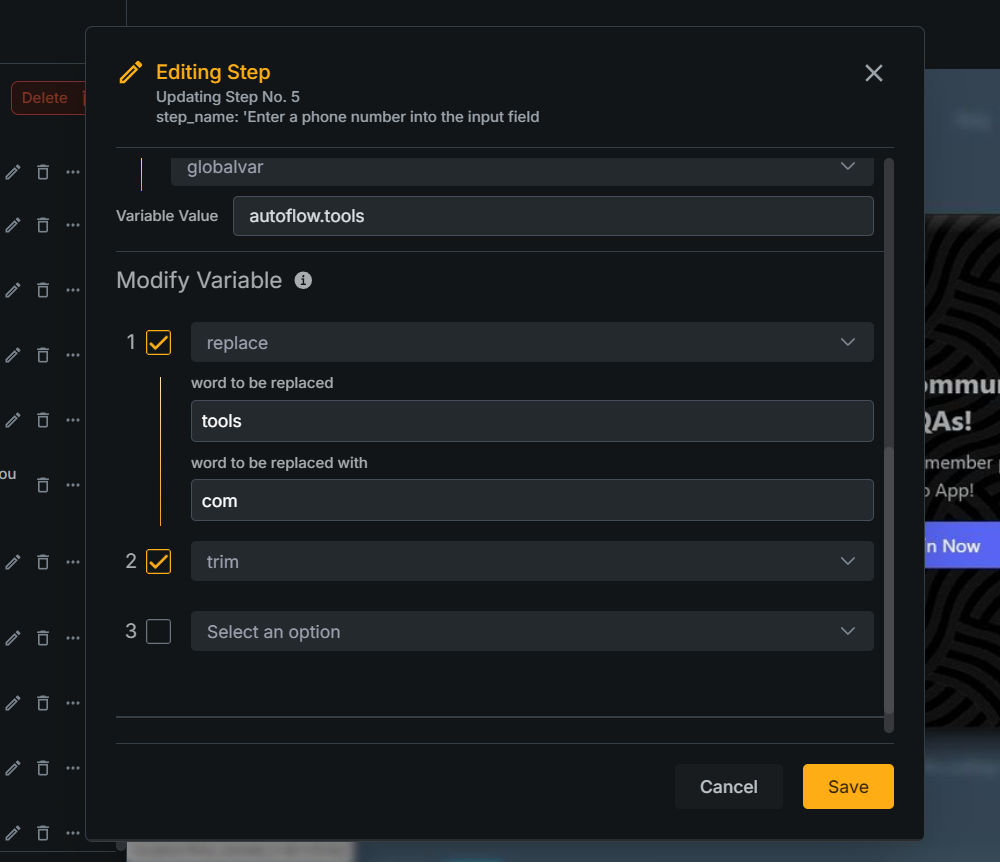
* Customize the value to be filled in: Customise the filled value of input steps.
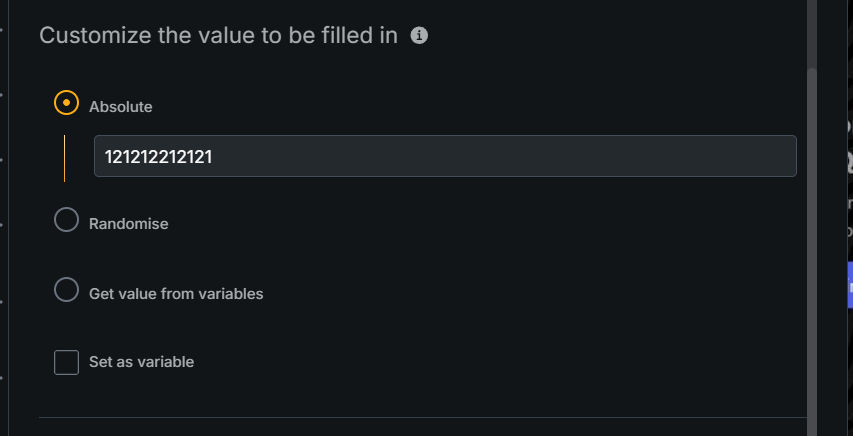
* Absolute : Enter the value to be filled in.
* Randomize: Randomize the value to be filled in using the available randomization functions.
* Variable: Use a variable to fill in the value using the available variables.
* You can modify the variable used via the 'Modify Variable' section.
* Modify Variable: Available functions to modify the variable.
* replace: replace a word with another word.
* get text between: get text between two words.
* trim: trim the variable.
* get value from object: extract data from an object using a key.
* custom function: coming soon.
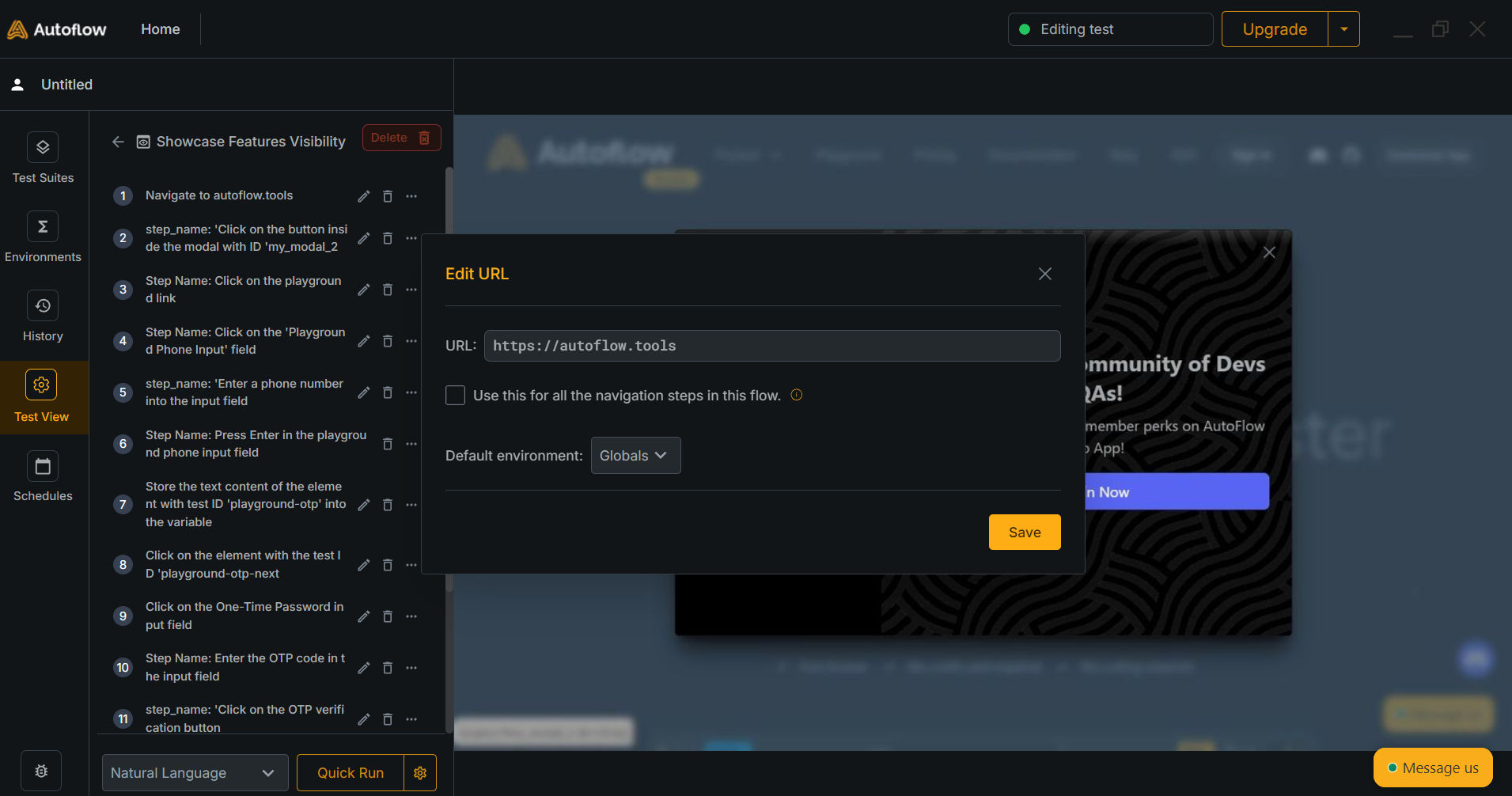
3. **Navigation Steps**
* Modify the url: Modify the url of the navigation step.
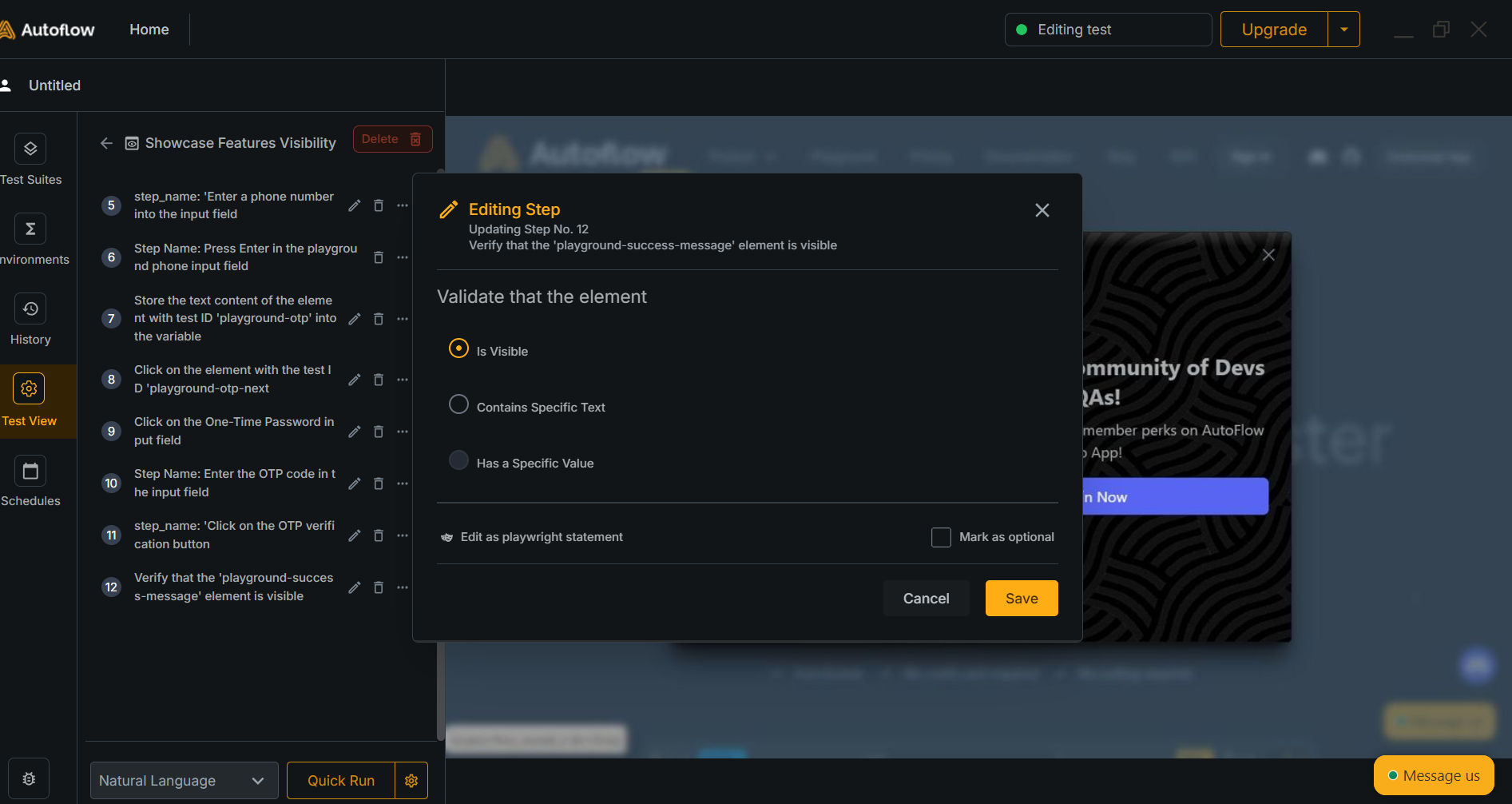
4. **Assert Steps**
* Modify the expected value: Modify the expected value of the assert step.
5. **Query Steps**
* Modify the query: Modify the query of the query step.