> ## Documentation Index
> Fetch the complete documentation index at: https://docs.autoflow.tools/llms.txt
> Use this file to discover all available pages before exploring further.
# Running a Test
> A documentation on Running a test
## How to run a test?
Running a test is very simple in AutoFlow Studio. You can run it across different devices and browsers using the drop down.
1. Click on the 'RUN' button in the sidebar.
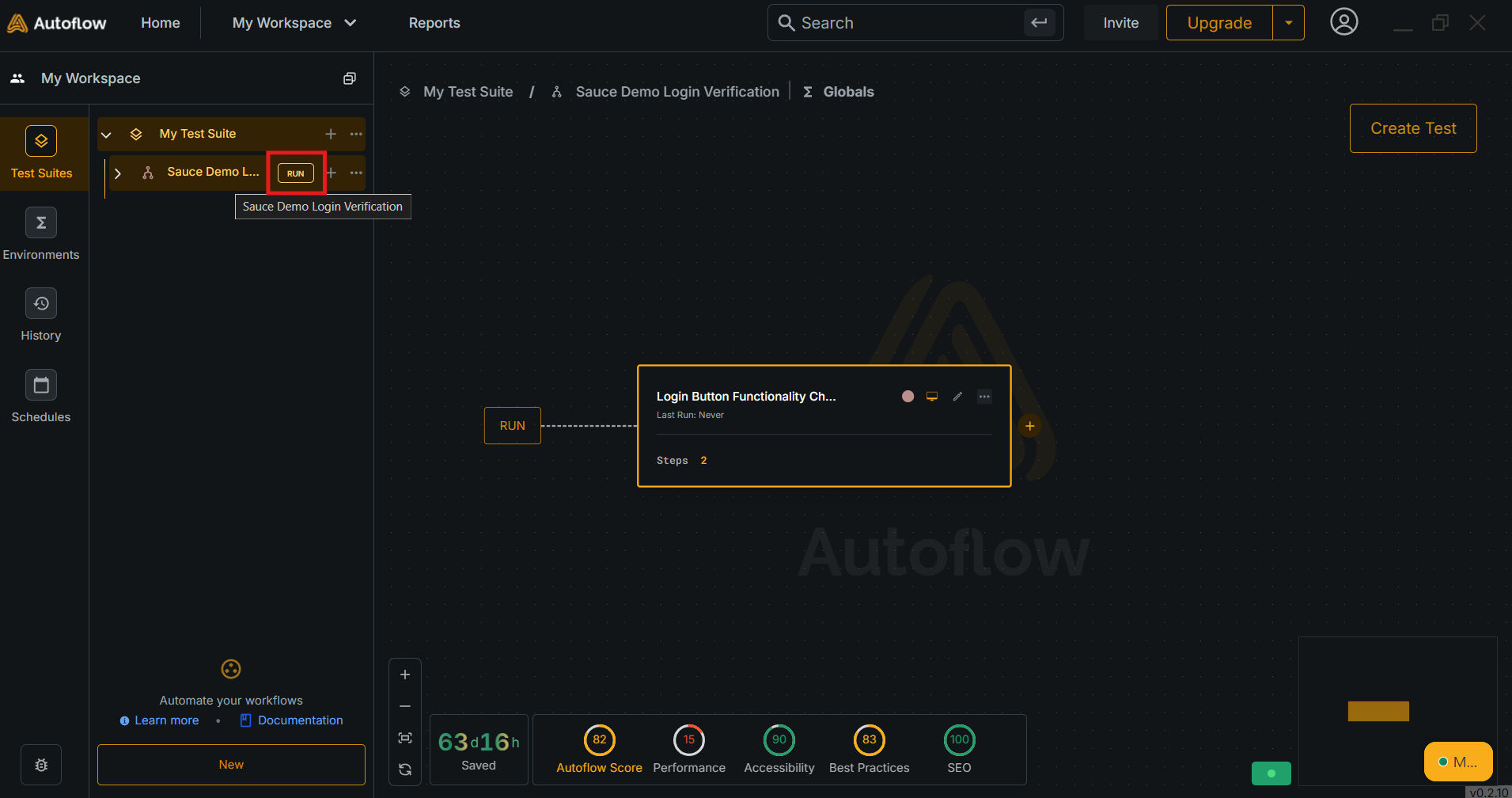
2. Select the device you want to run your test on. AutoFlow Studio will suggest you the devices in the dropdown depending on the device profile your test was recorded in.
Learn more about '[Device Profile](../../test-creation/device-profile)'.

3. Configure your run with the available options.
* **Choose your Device**
* **Choose your Browser**
* **Choose your Run Type**
* Local
* Cloud

4. Click on the 'Run' button to start your journey.
To learn more about '[Run Types](../../test-execution/run-types)'

5. The run has begun.
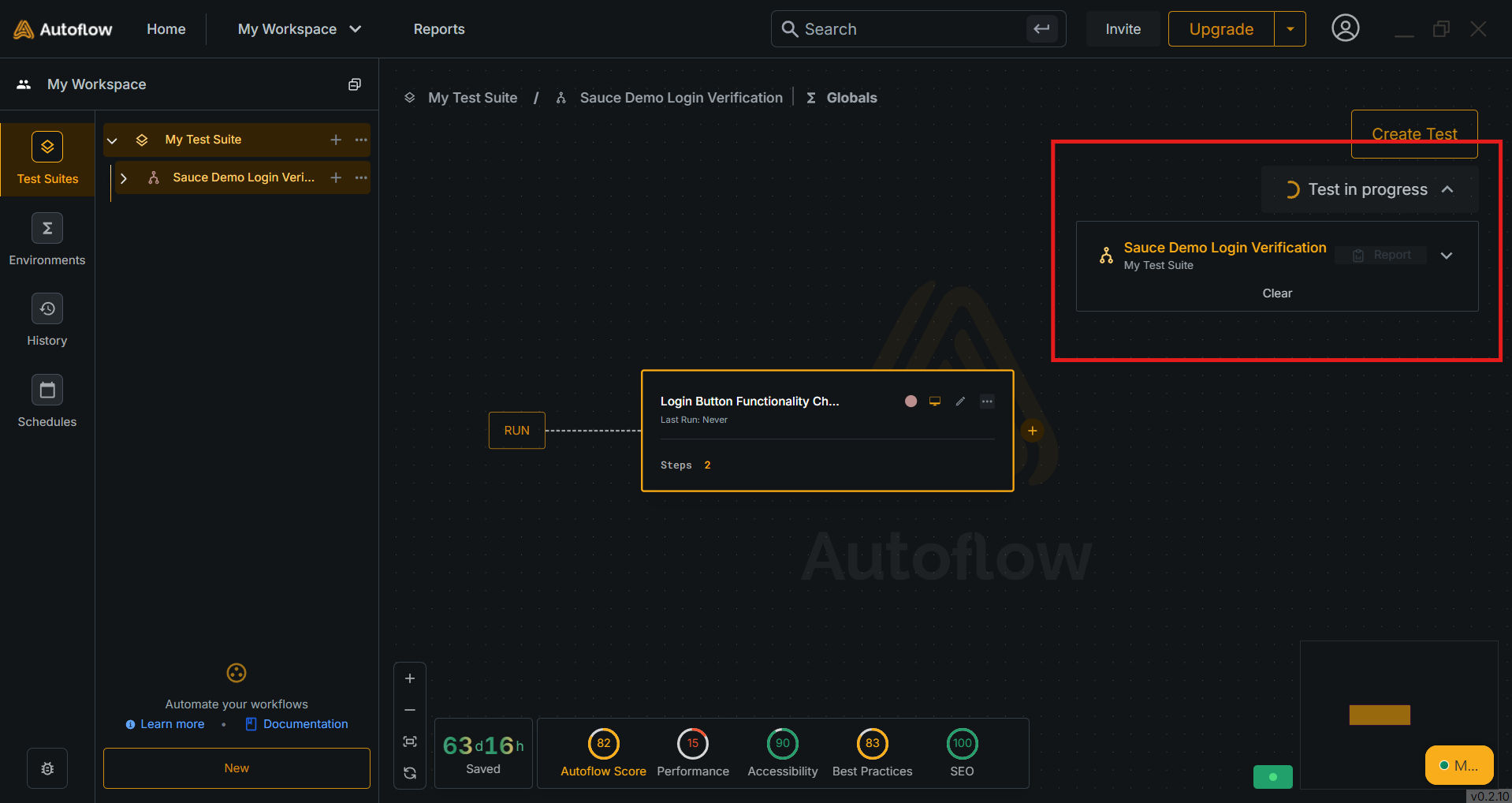
6. Check out the report of the run using the 'Report' button in the 'Run Card'.
